Tuesday, May 22, 2012

Google Docs Research Pane: Updated

After last week's announcement Google went ahead and listened to the masses (amazing isn't it).  They went ahead and added in Google Scholar and citations.  Check out this short video for the update:


Please note that we are a Rapid Release Domain for Google Apps for Education.  Therefore, even thought these are cool features, you may not have access to them yet.  They are coming and you can experiment with them in a personal Gmail account.

Also, for the Official Google Posting check out this URL.

Reactions?  Do you like that citations are complete in the Document?  Will we continue to teach citations in English class?

Monday, May 21, 2012

First Drive: SMART Notebook 11

First drives are always so much fun.  Do you remember the first car you ever test drove?  Mine was a big boat of a car, but it ended up getting me from Point A to Point B.

If only SMART Notebook could be as much fun as test driving cars!  Sometimes it seems like a terrible x-girlfriend that you cannot get rid of.  Our school, like many, purchased a number of these boards over the years and we have had mixed results.  Some of our teachers love them, use the Lesson Activity Toolkit, and all the features.  Then on the other side of the spectrum others use it strictly as a glorified overhead projector.  I can't help walking by, shaking my head, and wondering why we spent the extra few thousand dollars for the interactivity.  Regardless, now we have the boards and the training is ongoing.  Like any other piece of technology it requires users to become familiar with the features and how they can actually integrate it within their classrooms.

Speaking of, shameless plug, if you know anyone in the Duluth, MN area that wants to sharpen their skills check out this SMART Board course I am co-teaching this summer.  We extensively cover integrating the software into our classrooms heavily in this course.  It's all about you, your classroom, and a SMART Board.

Throughout the years I have not had a great experience with SMART and their software for Macs.  It has gotten better, but there was an incident earlier this year when the software got updated and the board drivers did not.  This caused major issues and most of the staff had to be manually reverted back to the old version of the software (not a fun time in the IT department).  Some times the software works great, but at other times it seems to crash.  If there was ever a reason to buy a PC emulator it might be for this software to run properly.

Well, as technology continues to change so does SMART Technology and their software.  I downloaded this new version of the software the day after it was released and had mixed results.  Here is a quick video showing some of the new features in Notebook 11:


After spending a few more days testing out the software I have noticed a few things:

1.) The software overall seems a bit slower to react.  It is slower to load, close, and overall pull up things.  It does appear a bit larger on my HD, but still it should be easier and not harder to complete work.  And yes, it still pulls up a blank presentation every time you open it up.  One more thing to fix!

2.) The adaptable toolbar is a nice addition.  It is a common complaint when I am teaching the software that there are so many buttons.  The new interface makes that a lot easier to navigate and get to the important items when you need them.  The intelligence also makes a whole lot more sense in this app compared to the MS Office suite, which is a bit convoluted at times.

3.) It has not crashed yet.  Seriously.  I am not kidding!  I am a constant Command-S user in this program, but now I feel a little safer.  I will keep you updated on this one, because I am not convinced yet.  I did have one problem closing out of the program when I was done that required a Force Quit.  Regardless, it appears to be a bit more stable over previous versions.

4.) There also appear to be a number of new features that I have not tried out yet (the browser in the slide, the activity builder, etc.), but the one that I have used heavily is the new Ink Layer.  They have completely redesigned it from the ground up.  What we are used to with one Ink Layer over the top of everything has now been changed into an individual Ink Layer over each individual window – now called Ink Aware.  The interface is a bit hard to get used to and the controls are also complicated to understand.  In addition, the floating toolbar is essentially rendered useless in this new version of Notebook.  In my limited test drive I found this to be the one overwhelming reason of why NOT to update at this time.  Check out SMART's website and the links below for more discussion on this topic.  Essentially they took the layer out and tried to make it a smart and aware layer.  The verdict is still out on this one!

I will continue to experiment and try new things out.  However, if you are interested in updating your Notebook to the new version check this URL out.  If you want a quick overview of the new features from SMART check out this URL. This is also a great resource for an outside look at the new update from TeacherTechnology.

Have you tried out the new Notebook 11 yet?  
What things have you noticed?
Do you have an opinion on the Ink Layer vs. Ink Aware?  


Thursday, May 17, 2012

Google Docs: Research Pane

Google Apps recently released a new Research Pane to all their users. This first appeared in normal Gmail accounts and has slowly crept into Google Apps users. I noticed it yesterday morning when I logged in to my school account.

This is a great new feature that allows you to research the web, find images, and quotes from inside of a Google Document. Check out this video for more information and classroom applications:


For more information on this new feature check out Google's Blog on this topic titled: "Find Facts and Do Research Inside Google Documents."

Another great source is one of my new favorite blogs, Free Technology For Teachers.  He also has a post and some great screen shots as well titled: "Search the Web Within Your Google Documents."

Way to go Google!  Keep the new features coming.

Monday, May 14, 2012

Welcome Back World!

Time flies when you are having fun, right?  Well, that is what it has seemed like for the past few months since I have last written.  Elvis has NOT left the building, but it did appear that I left the blogging world for a time.  Let's find out why...

I have been busy.  
That is the understatement of the century.  It seems like the life of teaching and directing technology in a building keep people busy.  I knew this going in, but I honestly did not think I would be this busy.  Between fully scheduled days, special events some weekends, and long nights sending emails and solving problems from abroad, life does not seem to stop when we want it to.  Regardless, just because I am busy does not mean that I have not been reflecting or that I have not wanted to write on this blog.

I have not had time.
OK, this is a lame one.  It is more of a personal confession that sometimes I get sick of technology.  I know, that's hard to say for someone that loves technology as much as I do.  However, when the decision is to spend another hour or so writing on my blog or with a real person (like my wife), I am going to choose the real person every time.  I need to remember that personal reflection is an integral part of learning and growing.  I have continued to reflect in different and new ways, but I just have not put anything on here.  Get ready for a ride.

I have expanded my family & life.
I guess last time I blogged I was married, but having another person around changes your priorities.  I alluded to this in the last paragraph, but it is a totally true statement.  I want to spend time with my wife way more than I want to write sometimes.  I love to express what I am learning through text; therefore, I am really looking forward to continuing to blog in the coming months and years.  I have also expanded my life.  Kind of a weird statement, but essentially my wife and I bought a home together.  Exciting, right?  It has been great; however, with it comes more space and more responsibility.  Both things that take adjustment.

I have not really had a good reason.
Once again, this is kind of a lame reason as well.  There are have been some really cool things going on at FAIR School Downtown.  In fact, our 1:1 iPad Program in elementary is going so well the administration decided to expand it to K-2 for next year.  This year we piloted iPads in middle school and expanded our 1:1 MacBook program to include grades 9-12.  Yes, a lot of devices and even more are coming in over the summer.  FAIR has also done some really cool stuff with Google Apps for Education (I obtained my Certified Trainer status since the last post as well), Facebook, and SMS text messaging.  All of these will probably be blogs for another time.  Not to mention the super cool stuff happening each and every day at an arts school in the heart of Minneapolis.

Guess what?  I now have a great reason to get back into the blogging world!  I started my Masters Degree Program in Instructional Technology at the University of Northern Iowa (UNI).  I looked into this program roughly a year and a half ago when I wanted to start my degree.  However, they were in the middle of a cohort.  Now the new cohort has started and I am privileged to be a part of it.  I just got through looking at our first two assignments and we have some great people in this program.  In the future you will see some unique and interesting posts on this blog (probably stuff for UNI) and some more of the same stuff you have come to enjoy from Fifty-Nine Minutes.

To my new readers, welcome.
To everyone else, welcome back.

Thanks for reading!

Sunday, March 27, 2011

Pulling Text from a PDF

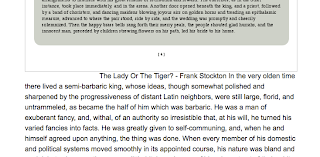
Last week after hunting high and low for a short story text to read in my English 9 class I discovered a great story, but it was only in a PDF. I wanted to manipulate it a bit and highlight some of the vocabulary and sections that stu
dents should be looking out for. I also wanted to add comprehension questions at the end to launch into our in-class discussion the following day. Long story short I needed to be able to convert the text into text.

Every once in a while I had to do this before, but I had never come up with a good method. Apple claims that with the new version of Snow Leopard that you can do it in Preview. I have tried this a few times and it just doesn’t work the way it is supposed to every time. Plus it only works on some PDFs and not on every one.

After looking for a fool proof solution - and the many software solutions out there that promised this and didn't deliver - I realized that in fact I was looking too far. Google Docs does and did exactly what I was looking for with the “Upload” feature. I have used this before to transfer Word and Pages documents into Google Docs, but never a PDF. Thanks to Google's back end technology it can do the conversion f

rom PDF to text for you quickly and easily.

Here’s how you would do it:

1.) Go to your Gmail account and click on the Docs tab at the top.

2.) Once in Docs you will notice next to your "Create new" drop down there is a button called "Upload." Click on that:

3.) This brings you to an Upload files page. Click the blue text that says "Upload files." Follow the steps to upload your file. This is very similar to attaching a file to an e-mail.


4.) After you attach it you will notice that the page will refresh and it will have your document listed in the box. Upload more documents if you want.

5.) Google uses Optical Character Recognition (OCR) to complete the transfer. There are however limits and restrictions. For a full outline of those and how OCR works click here.

6.) At the bottom of the page be sure to check the box titled: "Convert text from PDF to Google Documents" so that conversion can happen.
7.) After you click "Start Upload" the document will come back with the files created as a direct URL to your new text Google Document. Click on the link and you will get something that looks like this:
As you will notice there will be the scanned pages above each block of text that came from the PDF. The OCR is not perfect and it will not transfer certain tables and diagrams, but with the text it does a great job. Now that the text is in a Google Document you can edit, manipulate, or even export to a Word Document.

Google Docs saved the day for me and allowed my class to be very productive all within only one file. Most important this technology is free with a Google account. Happy converting!

Saturday, March 12, 2011

Google Apps for Education & Forms

Just over a year ago we began a shift from our old email services to Google Applications for Education. At times this shift has been hard and confusing, but once all the nuts and bolts were ironed out everything has worked very smoothly. Key to this process was allowing our staff members try out, implement, and discover all the unique features of Google Apps over last summer. When they returned we pushed them to use Google Sites for their teacher website and Docs for a variety of internal forms and discussions among colleagues. We also used Google Calendar for all those appointments we seem to have each and every day. This transition has gone very well and the success continues to astound me. A few of our innovative uses:

-Conferences: The ease with which instructors now create collaborative documents with each other and then edit them in real time is incredible. This year was the second year that we have used a conference Google Document across the high school to share and schedule conferences for each of our roughly 150 students. The kicker was that we did it all at the same time and in the same document. We even used an online form to have parents electronically submit times when they would like to meet with staff (see the video below for more information).

-Bus Duty: After school we have consistently had a problem dismissing all of our students at one time. There are two tiers of busses and they don’t always all get there are the same time. Google Docs and Drawings came to the rescue and now we have a document that everyone accesses at the same time each day to see which buses have arrived. Then staff across the building can dismiss their students accordingly. It has worked out very well.

-Meeting Notes: We used to e-mail notes about a meeting to one another if someone missed for some reason. This is not the case this year because our meeting notes are being consistently updated in real time between both buildings. This has brought greater collaboration and understanding between individuals and teams. Since we have multiple buildings within our district sometimes we schedule meetings when some individuals that work at both buildings cannot attend - whether for conflicting appointments or the geographic location. Now staff members can virtually participate in a meeting even if they are not physically there by commenting and adding to a Google Document that is updated in real time. Unfortunately they do not hear the audio of the meeting (even though there are other ways outside and inside of Google for doing this), but they can still be part of the meeting. It has been incredibly helpful to have all of our staff members on the same page because everyone can look at the one meeting document. We even have our associate principal adding in thoughts on a high school meeting when she is stuck in another meeting across town.

Those are just a few of the ways that Google Apps has changed the way we run in our school, but probably one of the most unique features has been the additional training around one specific application: Google Forms.

Google Forms operates much like SurveyMonkey, but it is free. Think of anytime when you are trying to get information from a group of people, but you don’t have a quick and easy way to do that. Well, fear no more because there is a simple and easy way to do just that. Watch the short video below for an overview (click on the image):
This was one of the very quick and easy ways that we have used Google Forms within our school. We have also created more complicated registration and application forms - even the one for the application to our school was built using this platform. We had over 1,200 parents apply and it was all handled easily, quickly, and was completely free.

Every time that you create a form it also creates a URL that is publicly viewable by everyone on the Internet that has that link. The permissions can be changed slightly, but in most cases you are going to want everyone to fill it out. That URL you can then post on your website, Facebook out, or even e-mail to everyone that you need or want to take your form.
These forms have completely taken our high school by storm. I have used them for quick comprehension checks and for more intensive exams that have taken the entire hour. Our math teacher is using these (in conjunction with a bit more math in her spreadsheet) to actually have the students take the quiz using the form and then it will grade the student’s quizzes and provide her with their scores. In our world history and upper level English classes students are doing their own self grading of essays using this format. Each and every time our instructors are getting real time, electronic, feedback from our students.

All in all Google Forms has completely revolutionized the way that we get information from parents, students, and their families. However, the best news is that even though this specific app is part of our Google Apps for Education domain it is something that even if you can access. Just login to your Gmail account and click on Documents. Then create a new document and select Form. It is that easy.

Want to know which week this summer is best to plan a vacation for your family? Create a Google Form. Once you start I guarantee that the ideas on how to use them both professionally and personally will not stop.

Tuesday, August 24, 2010

Being on the Bleeding Edge

As many people at the forefront of technology know, being at the beginning of changes in operating systems and new pieces of technology often comes with great excitement and lots of learning. It brings a tech geek great joy to figure out a new piece of technology and how to manipulate and make it do something that it has never been able to do before. Although, tech geeks are not the only people that desire to be the first. Take the millions of people that have lined up in the last few months to purchase a new iPhone 4, Droid, or iPad.

The same excitement that tech people get when they figure out a new piece of technology also often brings lots of pain and headaches along with it. Being one of the first to figure out, break, and try to fix a new piece of technology is not easy nor is it always fun either. You kind of feel like a man walking out on the moon without any support along the way.

This was very much the case as this summer we were blessed to expand our 1-1 Program at the FAIR School Downtown to include both our 9th and 10th grade students this year. This spring we purchased sixty new uni body MacBooks and early this summer we prepared to image them for the fall. We had a debate about which operating system to put onto the computers because they came shipped with 10.6, Snow Leopard, even though the rest of our environment (the roughly eighty-five other computers that we have) is currently is running on 10.5.8, Leopard. We weighed the pros and cons and even though there is not a large visual or end user experience difference between the two operating systems we decided to keep the environment the same for everyone. We began the process to create an image for this new machine based on the 10.5.8 operating system and tested out that image on a few machines. At face value the image looked good, the programs were operating, and the main components were running. So we decided to begin the imaging process for our sixty machines. After three days, and many hours of preparation, imaging, and take down, we completed the process of imaging all these machines ahead of schedule.

However, as we went to do final testing, installation of anti-virus software, and preparation for roll out early September we began to notice some problems in our image. For instance, the sound did not work at all. It had a gray X though it. We dug a little deeper and came across a few other minor errors in our new machines. At first we thought it was singled out to a few machines and then we realized it was all our machines. To the Internet we went, searching for sound drivers, other people that were having the same issue that we were having, or any piece of advice about our problem. We found a few people experiencing the same issue, but no one had a solution to the problem that we were having. After a while I had my fellow tech call Apple Care and see what was going on. The representative that we talked to had us run a bunch of things that we had previously run, resetting the PRAM and checking for updates.

Sometimes I wish that there was an Apple Care support line for tech staff who could call in and say you have done x, y, and z and now here is the issue and what are your thoughts. They could talk to us like geeks and we could talk back to them like geeks and we can get the issue solved. Instead, we have to sit though all the steps that we previously did and that any normal geek hopefully would have already tried. I get the rational for Apple to do it the way it does, but it pains me to sit though the direction from the Apple Care representative to Check for Updates when I tried that three days ago.

After walking through the basic steps from Apple and semi-stumping the Apple Care representative he suggested that we move our computer back to 10.6. Needless to say we did not really enjoy his suggestion, especially because we had all sixty computers imaged with 10.5.8. What choice did we have though? It was not like on the box the computers shipped it said: “Do NOT revert this machine back to 10.5.8 because it will not operate properly.” In hindsight maybe it should have. There was no mention of this warning, but once again we re-created the image and then spent the time to re-image and bring the machines back to the 10.6 operating system they came shipped with.

The very next day an Apple Engineer came out to work on some syncing issues we were having with the Apple server we use for the 1-1 Program. I asked him about the 10.5.8 and 10.6 issues that we were having and his response intrigued me. In no uncertain words he said that 10.6 was built on a completely different platform than 10.5.8, which for people who read about this stuff they recognize the 64 and 32 bit differences. Furthermore, he said that the hardware inside of a machine that is shipped with 10.6 will not work properly when the machine is reverted back to an older operating system. This explained our sound issue with the Logic Card. Finally, he said that if a machine was shipped with 10.6 and is reverted back it runs the risk of overheating and Apple will not support it.

Bottom line: Do NOT revert an Apple computer that comes shipped with 10.6 on it.

We learned our lesson and in the end I am happy that we are giving our students the best possible machine to complete their work on. However, the challenges of maintaining a multiple operating system based site are going to be interesting. We looked into the process and possibility of moving our entire school up to 10.6, but the cost of doing that was too great to consider at the moment.

Being at the front end of technology is a lot of fun and constantly challenging, but with it does come many bumps in the road. Those bumps, although costly in time and headaches, do make us the unique person that we are and for that I give thanks as a tech geek educator to be on the bleeding edge.