Just over a year ago we began a shift from our old email services to Google Applications for Education. At times this shift has been hard and confusing, but once all the nuts and bolts were ironed out everything has worked very smoothly. Key to this process was allowing our staff members try out, implement, and discover all the unique features of Google Apps over last summer. When they returned we pushed them to use Google Sites for their teacher website and Docs for a variety of internal forms and discussions among colleagues. We also used Google Calendar for all those appointments we seem to have each and every day. This transition has gone very well and the success continues to astound me. A few of our innovative uses:
-Conferences: The ease with which instructors now create

collaborative documents with each other and then edit them in real time is incredible. This year was the second year that we have used a conference Google Document across the high school to share and schedule conferences for each of our roughly 150 students. The kicker was that we did it all at the same time and in the same document. We even used an online form to have parents electronically submit times when they would like to meet with staff (see the video below for more information).
-Bus Duty: After school we have consistently had a problem

dismissing all of our students at one time. There are two tiers of busses and they don’t always all get there are the same time. Google Docs and Drawings came to the rescue and now we have a document that everyone accesses at the same time each day to see which buses have arrived. Then staff across the building can dismiss their students accordingly. It has worked out very well.
-Meeting Notes: We used to e-mail notes about a meeting to one another if someone missed for some reason. This is not the case this year because our meeting notes are being consistently updated in real time between both buildings. This has brought greater
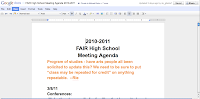
collaboration and understanding between individuals and teams. Since we have multiple buildings within our district sometimes we schedule meetings when some individuals that work at both buildings cannot attend - whether for conflicting appointments or the geographic location. Now staff members can virtually participate in a meeting even if they are not physically there by commenting and adding to a Google Document that is updated in real time. Unfortunately they do not hear the audio of the meeting (even though there are other ways outside and inside of Google for doing this), but they can still be part of the meeting. It has been incredibly helpful to have all of our staff members on the same page because everyone can look at the one meeting document. We even have our associate principal adding in thoughts on a high school meeting when she is stuck in another meeting across town.
Those are just a few of the ways that Google Apps has changed the way we run in our school, but probably one of the most unique features has been the additional training around one specific application: Google Forms.
Google Forms operates much like SurveyMonkey, but it is free. Think of anytime when you are trying to get information from a group of people, but you don’t have a quick and easy way to do that. Well, fear no more because there is a simple and easy way to do just that. Watch the short video below for an overview (click on the image):
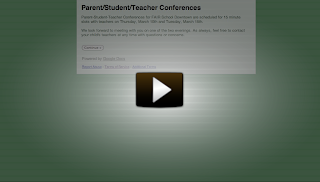
This was one of the very quick and easy ways that we have used Google Forms within our school. We have also created more complicated registration and application forms - even the one for the application to our school was built using this platform. We had over 1,200 parents apply and it was all handled easily, quickly, and was completely free.
Every time that you create a form it also creates a URL that is publicly viewable by everyone on the Internet that has that link. The permissions can be changed slightly, but in most cases you are going to want everyone to fill it out. That URL you can then post on your website, Facebook out, or even e-mail to everyone that you need or want to take your form.

These forms have completely taken our high school by storm. I have used them for quick comprehension checks and for more intensive exams that have taken the entire hour. Our math teacher is using these (in conjunction with a bit more math in her spreadsheet) to actually have the students take the quiz using the form and then it will grade the student’s quizzes and provide her with their scores. In our world history and upper level English classes students are doing their own self grading of essays using this format. Each and every time our instructors are getting real time, electronic, feedback from our students.
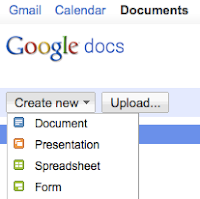
All in all Google Forms has completely revolutionized the way that we get information from parents, students, and their families. However, the best news is that even though this specific app is part of our Google Apps for Education domain it is something that even if you can access. Just login to your Gmail account and click on Documents. Then create a new document and select Form. It is that easy.
Want to know which week this summer is best to plan a vacation for your family? Create a Google Form. Once you start I guarantee that the ideas on how to use them both professionally and personally will not stop.