Showing posts with label iPods. Show all posts

Friday, October 19, 2012

Bitsboard: An App That Transforms Education

Having been a part of the iPad/iPod/iOS education world for the past few years I have seen a number of good apps and tons of bad apps as well.  Unfortunately, the bad apps, or non-educational ones, seem to heavily outweigh the perfect for education apps.  However, whenever I present to a group of teachers or other educators the most common question is “What are some of your favorite apps?”  Now I completely realize that apps are only one thing that you can do on an iPad, but every once in a while a good app comes along and you just have to share it.  This is the case today with the creation and release of Bitsboard by Grasshopper Apps.  If you are not familiar with Grasshopper Apps, then I suggest you check out their website here.  They are widely known throughout the educational community for having amazing, beautiful, and free apps that are completely customizable.  That’s right - educators of any kind can tweak, change, and add whatever they want to their own app.  At FAIR School Downtown we would add in our own images, lists, and audio.  This has been a huge game changer in our classrooms - especially with spelling words.  Teachers would create their list(s) for the week all ahead of time with images, pictures, and audio over the top and then I would sync the one master iPad with the lists to all the other ones.  Sometimes it would work and at other times the lists would corrupt halfway through the quarter.  It was a great idea, but never reached its full potential.

Now the game has changed, finally.  For almost a year now I have been in close contact with Mila over at Grasshopper Apps.  They have been working on an app that allows teachers to create their own flashcards and then share them to their students through a catalog.  No syncing required.  It has been incredible to see an idea that many users wanted transform into a fully developed app.  That’s right, this morning they released the newest, and in my opinion best so far, app called Bitsboard.  


Bitsboard is only about 10% done according to their introduction email, but is is absolutely a game changer in terms of educational apps.  At this time the app has access to over 100,000 flashcards that include pictures and audio, allows you to create new flashcards (see the process below), backup the custom flashcards online, sync and share content across devices, and provides access to lessons from other teachers as well.  Now at this time I totally understand that this is only a app that has customizable flash cards with images or audio, but this is a start.  I personally do not know of another app out there that allows you to create unique, customized content with images and audio, share it with the cloud, have your students download it, and then practice totally without syncing the devices.  

Here is how it works:

1.) Download the Bitsboard app on the App Store.
Did I mention that this app it totally free!  That’s right, I get nothing for posting about it and there is no cost to you for trying it out.  Can’t get much better than that!


2.) Open the app and land in the “Home Screen” of Bitboard
This is where the pre-downloaded lists are at or where the lists are that you downloaded from the Catalog.


3.) Notice the “Catalog” icon in the upper left corner.  This is where Grasshopper Apps already has pre-created boards that have content in them.  They have also added in some of their more popular apps with the content already added in (Telling Time, First Words, Three Letter Words) at the top.  If you find a list you want to download, click the universal cloud with the arrow down icon and it shows up on your iPad in seconds.


4.) What about actually creating your own lists?  Easy.  Navigate back to the “Home Screen” for the app by clicking the “Home” icon.  Then click the “Gear” in the upper right corner.  We are all familiar with what this icon means, but this time it brings up a few option in the contents.  Click on “Your Boards” and then the “+” in the upper right corner and then “Create a new board.”


5.) Enter a title at the top where it says “Enter board name here”

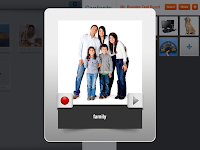
6.) Click the plus icon to add a new flash card.  The new flash card comes up and then you can type in the word you want here.  Most words will then also automatically pull in a photo of what you typed as well.  If not then you can choose an image.  In addition, the app may also drop in audio of the word as well, but if not then click the red record button and put in your own audio.  Want to listen to it?  Then click the green plus icon on the other side.  As soon as you are done with one flash card, then click behind on the right and it saves automatically.  Click the “plus” icon and a new blank flashcard comes up here.  


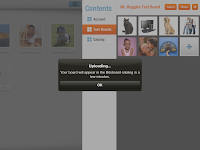
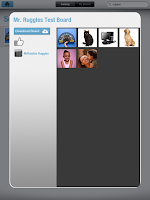
7.) Sharing the set of flash cards (called boards in this app) is almost as easy as well.  Click the “Share” icon in the upper right corner of the app and provided you are logged into Facebook as well the board automatically appears in the Catalog.  The Facebook integration kind of bugged me at first, but then I read some more about this app and the folks at Grasshopper Apps are already working on the ability to create new user accounts without Facebook and they claim that this is coming “very soon.”  Then a few seconds after uploaded the board, I checked in the Catalog and searched for the title of my board.  It was there waiting for me and the students in first grade, or anyone with an iPad and this app, can download and use it.  Absolutely amazing!  


A few things to be aware of about this app from Grasshopper Apps.  First, they are currently in the process of integrating a bunch of their other apps into this one so that it becomes a “one stop shop.”  Coming soon is integration with Photo Touch, Little Reader, Little Speller, and Memory Cards.  They are also claiming to add in a bunch of other pieces to this app so that it is more than a flashcards app.  What that looks like we will see soon.  Also, this is only an iPad app at the moment.  They are actively creating an iPhone version as well.  For more information check out the full posting about this app in the App Store linked here.

Maybe I am only the one that is totally excited about this app, but the possibilities for me boggle my mind.  Teachers can now be at home, create a spelling list, review list, etc. and then have the students download it when they arrive on their iPads at school.  In addition, teachers in the same building or district at the same grade level can all be using the same lists so students learn the same content regardless of the teacher.  Foreign language, special education, and high school biology terms have all been transformed now.  Create a list, share it with your students, and then have them review on their own time and not during precious class time.  This app can also transform the learning and review process at home.  If families own an iPad (or iPhone in the future) they can download this free app and then look for the teacher’s lists for that week.  Then the student can practice and review their school work at home.  No missing paper, lost list, etc. Furthermore, students can create their own lists.  If they consistently have trouble with a few words they can create their own “challenge list” and then add the ones they get wrong each week and consistently practice them when they have a chance.  The possibilities appear endless. 


With the understanding that this app is still under development, there are a few things I would tweak.  My largest suggestion at this point, outside of adding in the non-Facebook requirement to post lists, would be the integration of testing and reporting the progress on lists.  Alligator Apps has an awesome app titled “A+ Speller” that allows students to practice their words and then the progress is emailed back to the instructor.  I would love to see some integration on this front so that instructors can track student progress and how they are doing on specific words.  This would be a welcome addition to the app, but I have to say at this point I am very impressed with the ease of use, functionality, and ability to easily share and download content.  Well done Grasshopper Apps!  

I would encourage everyone out there to download and try out this app.  It’s free so its not like you are out a dollar or two.  Who knows, you might just figure out a way to integrate this into your classroom/school/district.

P.S. I was not paid or encouraged to write this post about Bitboard.  I am so excited about the potential this app has to transform education that I had to share.  Thanks for reading!

Sunday, August 26, 2012

2 Years of iTeachers

A little while back I taught a graduate course for the University of Saint Mary's in Minnesota titled iTeacher in St. Cloud, MN.  My co-teacher and I focused specifically on the integration of iPods and iPads into our learners' curriculums, hence the name "iTeacher."  It was a really fun week where I learned a lot about teaching and iOS devices and our learners walked away with some solid implementation ideas.

One thing I am really proud of when I teach a course like this is that I leave my learners with the resources to come back to after our time together is physically over.  So I went ahead and created a simple and quick Google Site for our course.  It has on the resource page a whole host of items that may or may not be helpful to someone as they look at, decide on, or implement iOS devices in their environment.  Access to that page, and the entire website, can be found by clicking this link.

That week was a lot of fun, but one of the more valuable experiences for the learners there was when I stopped the direct instruction and came and sat down with them and discussed what I personally had learned from directing iOS deployments and programs for the last two and a half years.  They asked that  I would share this list with them on my blog.  So here goes, in no particular order, my personal reflections:

  • Have a plan.  I think this goes without saying, but you would not believe the number of school districts that I have consulted with that do not have a clear direction or idea where they are going with the iOS devices in their school setting.  Who is going to use them?  How long are they going to use them?  Who will be syncing them?  Have you checked your wireless and made sure that it can handle a large number of iOS devices on it?  Which model of app purchasing are you going to deploy in your environment?
  • Do your research.  There are a lot of people out there that have written much on the topic of iOS integration within curriculums and school settings.  What do they say?  What has been the most effective?  At The FAIR School we are consistently hosting schools and individuals alike that want to know more about our programs, what we are doing, and how we make it work in our classrooms.  Have you visited another school?  Do you know what they do with the iOS devices after the day is over?  How do you store them throughout the summer?  How are they actually implemented into the curriculum?
  • Have support lined up.  Syncing these devices takes time plain and simple.  Who is going to invest their time to make sure they are done correctly and efficiently?  Are you going to use a Mac or a PC for syncing?  I will say that if you use a PC expect syncing to take hours longer than using a Mac.  Apple has specifically made a tool for syncing devices, but it can only run on a Mac - typical.  It's worth the look at Configurator if you plan on having more than 20 devices for sure.  Also, where do you go when a question comes up?  What support network can you reach out to?  Who will answer your question in a timely and appropriate manner?
  • Have a schedule set-up.  This is one of the items that we added at The FAIR School last year in quarter four and something that I wish we had done years ago.  This schedule now lists specifically when each iOS cart will be synced and I can put in, based on my schedule, how long it is going to take.  In addition, I plan a meeting about a week prior to syncing and make sure that the Golden Master iOS device is ready and set-up exactly like my teachers want.  This alleviates the stress when they go to open a cart and the app they need for instruction is not listed there.  This schedule is also shared among the other iOS teachers so they have a good handle on when other teams are syncing and what my availability looks like as well.  However, most importantly it allows for me to keep my sanity instead of syncing the devices on a random schedule or whenever an instructor found "a really great app."  One final thing on this point to consider is the length and time software updates take.  I still remember the days of taking one iPad at a time and running a software update.  You think it takes a long time now, think about back then!  Thankfully the resources came along to use Xcode and now Configurator to make the process move a lot faster, but it still will take a while.  Plan a few days to make sure everything is set back up after a software update.  Consider also if you really need to do a software update.  Sometimes it is better, especially with iOS 6 coming out, to wait the school year before updating unless there is some compelling reason to move quickly to the new iOS.
  • Have the money stuff figured out.  Purchasing apps in iTunes is one thing, but purchasing apps in the Volume Purchasing Program is something totally different.  Make sure to do your research and have your Program Facilitator set-up and decide as an organization which roles you are going to give to individual teachers or staff.  Who will be purchasing apps and how will they get them to the students?  One other big consideration is trying out new apps.  I make it a point to have some funds on hand to test out applications for my teachers.  I don't want to spend $100.00 on an app that will not work in their class, but I will spend $1.00 for them to try it.  I have no problem purchasing one code and then sending it to them to evaluate.  
  • Have your policies in place.  How will students carry their iOS devices to their seat?  How will they interact with them at their desk?  What happens if a student drops a device?  What about if they break their headphones?  Any of these concerns cause a technology director to toss over in bed at night.  Having these set policies and plans in place make your program move forward a lot quicker and more efficiently as well.  One thing we teach our elementary students is to hug their iPad when they walk back to their desk from the cart in the same manner that they hug a book when they get it from our leveled library.  If the students already know the language, why reinvent the wheel just because it is a different medium?  
  • Setup the expectations.  Just like we have expectations for our students in the classroom, we also have expectations on our staff for use on the use of iOS devices.  In elementary we mirror the implementation of the iPads with our Daily 5 program and PALS.  Together these two tools allow us to say that at Day 1 the iPads will be in place within our classrooms and by Day 10 they will be part of the rotation within at least one of the five activities - mainly listening to reading.  After that we have a few other expectations, but it sits on our teachers to hit the guidelines that we set for them.  Furthermore, we had the expectation that throughout the summer all our iOS using staff members would come to a training we set-up called "iPad Camp."  They dedicated their mornings to really integrating the devices into their curriculums, talking about expectations, and overall deployment as a team.  It was an effective and useful week and something that would not have happened without the expectation that they were to arrive each day.
  • Don't confuse the purpose.  iOS devices are awesome tools to aid in instruction and learning within the classroom.  Period.  They should not be confused with anything else such as a gaming device, play toy, or a classroom teacher.  This specific purpose should allow your teachers to drive home the implementation of them early and allow them to be used specifically and intentionally within your classrooms.  Keep that in mind as you or your team plan.
  • Think about implementing a core set of apps school or district wide.  As part of "iPad Camp" we determined a specific and core set of applications that will be loaded onto each iPad district wide.  These ranged from things like Accelerated Reader to PDF-Notes to the iTalk Recorder.  There were not many applications, but every decided that the continuity required for students was essential moving forward.  In addition, they also decided on the naming of folders to be very similar.  For instance, everyone has an LTR folder on their iPads (LTR stands for Listen to Reading), but the content within that folder is different for each classroom or grade level.  This overall decision will only help to strengthen our program moving forward as we are on the same page school and district wide.  It will not matter who they had in 1st Grade because there is at least a core set of applications that will look familiar.
  • Think about the basics.  How will the iOS devices be stored and locked up each day?  How will you care for them?  Are the students or staff responsible for cleaning them?  Will you purchase styluses?  What about back covers?  Headphones?  Keyboards?  Each of these decisions needs to occur even before the iPads arrive within your building.  Are you in an environment where the devices need to be shared?  Then what does that look like and how much time will each teacher have with them?  Is there a method to shift hours or time if a specific instructor does not utilize them well or does not implement them at all?  
  • Model, model, and model some more.  I think it goes without saying that students do not pick up a concept the first time they interact with a piece of technology.  Continually model for your students how to handle the device, how to use the organized folders on you iOS devices, and how to use one finger to move from app to app.  Students love the iOS devices, but sometime they forget the expectations, rules, guidelines, and best practices you have setup in your classroom.
  • Figure out the long range implementation plan.  Everything that deals with our iOS devices goes back to the individual instructor's scope and sequence.  The iPad has to be tied into the curriculum in meaningful and relevant ways.  We frame it as a tool and we use it as a tool and nothing else.  Then when teachers have looked at their scope and sequence we have them match apps with their standards and then also fill our an app rubric to match each app.  We want to know that the apps we are syncing have been tested and really do fit with the educational goal at hand.  These types of documents also provide a more linear discussion among teams and schools as to who is using what, where, and why, which only leads us to strengthening our iOS program.
  • Celebrate your successes.  More often than not the year goes by and no one ever says "Good job," "Well done," or "What a difference that has made in your classroom," but I encourage you to take the time to meet with your team(s) and really celebrate what you are doing.  Share it with the world and continue to reflect on what you have learned so that the next day, month, or year is better than the last one.
That's my list of reflections for now.  I am surely forgetting something, but the ride has been incredible.  To think of a device that only five or six years ago was not on the commercial market and is now in our classrooms and successfully implemented is a huge accomplishment for both me and many of my fellow colleagues around the state, country, and world.  Keep up the good work being iTeachers!